
Total ink coverage and the 240 percent limit
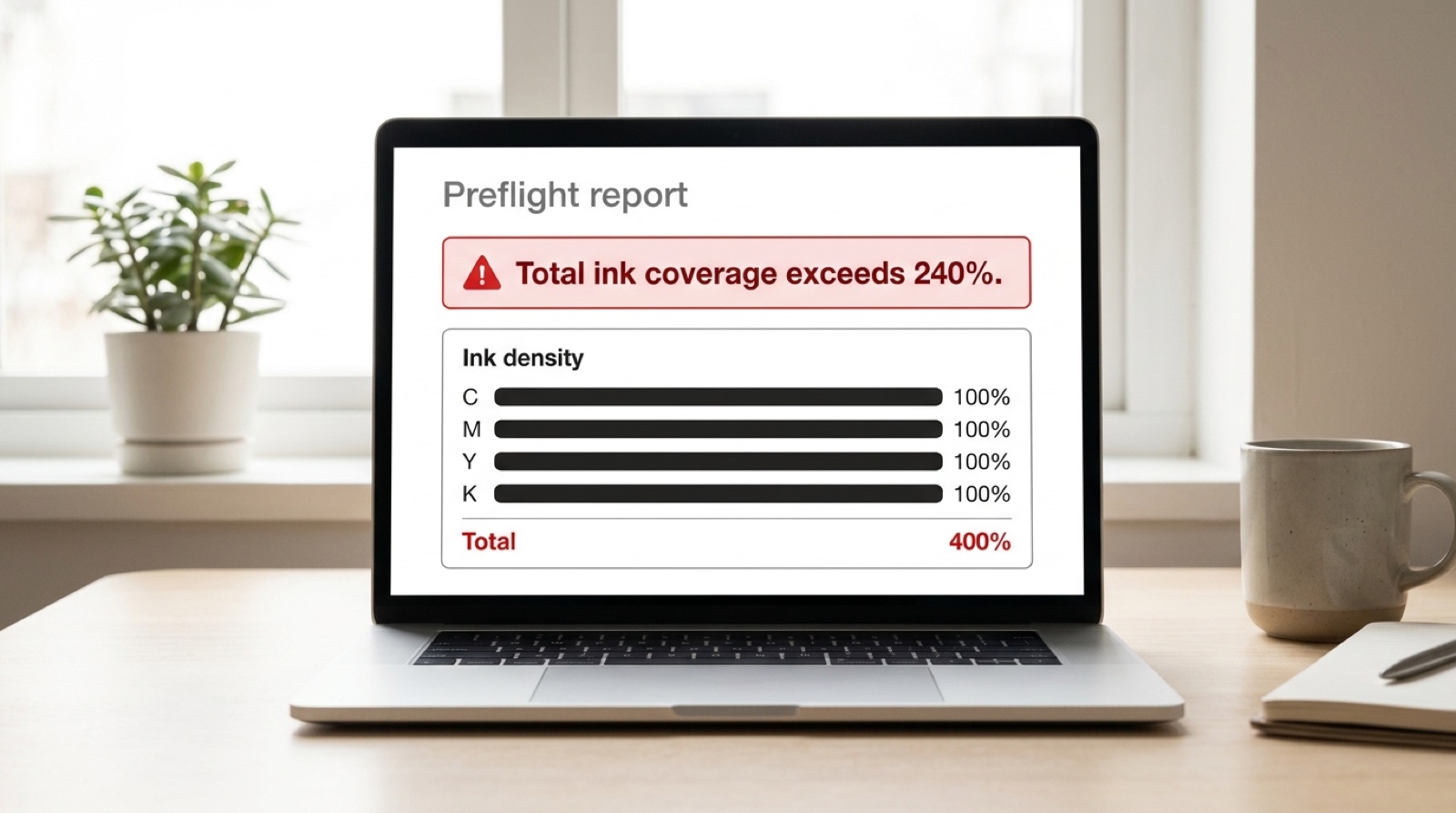
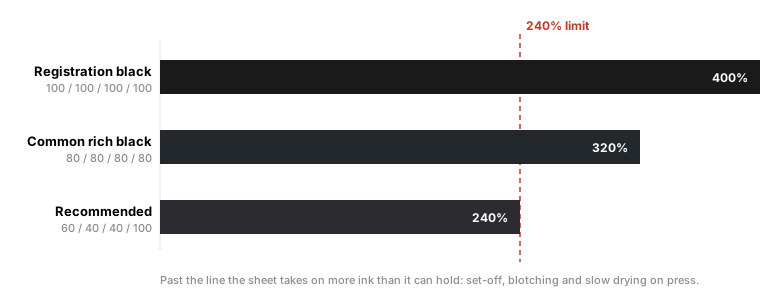
Total ink coverage, sometimes called TAC, is the sum of the four CMYK percentages in the darkest area of your artwork. IngramSpark recommends it stays at or below 240 percent. Registration black, where all four channels sit at 100, totals 400 percent and is the usual culprit. Past the limit the paper takes on more ink than it can absorb, and the result is set-off, blotching and slow drying.
This is the rejection almost nobody writes about, and it catches designers rather than beginners. A cover can be perfectly compliant, correctly sized, fully embedded and still be refused or, worse, accepted and printed badly.
What the number actually measures
Every color in a CMYK file is a mixture of four inks, each expressed as a percentage. Add those four numbers together and you get total ink coverage for that spot.
- A mid gray at C0 M0 Y0 K50 totals 50 percent.
- Plain black at C0 M0 Y0 K100 totals 100 percent.
- A common designer rich black at 80/80/80/80 totals 320 percent.
- Registration black at 100/100/100/100 totals 400 percent.
Only the heaviest area of the file matters. A cover that is white apart from one deep shadow is judged on that shadow.
Why print-on-demand has a lower ceiling
A commercial sheetfed press running coated stock can carry 300 percent or more, because the sheets pass through slowly, sit in stacks, and have time to dry between operations.
Print-on-demand does not work that way. A single copy is printed, folded, trimmed and bound in one continuous run on uncoated paper. Uncoated stock absorbs rather than holds ink on the surface, and there is no drying interval. Push too much ink onto that sheet and three things happen: the ink sets off onto the back of the next sheet, the saturated area blotches and loses detail, and the paper cockles because the fibers swell unevenly.
The 240 percent figure is not arbitrary. It is roughly where uncoated print-on-demand stock stops behaving predictably.
Use this rich black instead
IngramSpark's recommended rich black: C60 M40 Y40 K100
Total: 240 percent exactly. It prints as a deep, neutral black with far more presence than plain K100, and it sits precisely on the limit.
Plain K100 on its own is safe but looks weak across a large area, appearing as a washed out dark gray rather than a true black. That is why designers reach for rich black in the first place. The mistake is reaching for it by eye, or by using an application default, rather than by a value that respects the ceiling.
Where the excess usually comes from
- Registration black used as a color. In InDesign and Illustrator, the swatch named Registration is a production mark color intended for crop marks, not for artwork. It is 100 in every channel by design, so that it appears on every plate. Used as a fill it guarantees 400 percent, and it is by far the most common cause.
- Photographs converted without a profile. Converting an RGB image to CMYK without a print profile can push shadow areas well past 300 percent, and a dark, moody cover photograph is the classic case.
- Stacked transparency. A dark object at reduced opacity over another dark object flattens into a single very heavy color that neither layer showed on its own.
- Black text on a dark background. Where a rich black panel meets black type, the values can compound.
How to check before you upload
In Adobe Acrobat Pro, go to Tools, then Print Production, then Output Preview. Enable Total Area Coverage and set the threshold to 240 percent. Everything above the limit is highlighted directly on the page, so you can see exactly which elements are the problem rather than guessing.
In Photoshop, the Info panel readout under the cursor shows the four channel values for any pixel. Sample the darkest areas of the image and add them up.
How to bring a file down
- Replace registration black with the recommended rich black everywhere it appears in artwork. This alone fixes most files.
- Reconvert images using a profile with ink limiting built in. A US Web Coated SWOP style profile constrains total ink during conversion rather than after it, which preserves shadow detail far better than pulling levels down afterwards.
- Flatten and re-measure. Transparency effects change the final values, so check coverage after flattening, not before.
- Resist simply lightening the artwork. Reducing overall brightness to sneak under the limit costs you the contrast the design depended on, and controlling the conversion is the better route.
One platform cares, the other does not
IngramSpark publishes the 240 percent recommendation and may refuse files above it. Amazon KDP publishes no equivalent hard limit, which is why a dark cover can print on KDP without comment and then be refused by Ingram. If you distribute through both, build to the stricter number. The full comparison is here.
What good looks like
A cover that prints well on demand tends to have deep blacks built from the recommended rich black rather than from everything at once, shadow detail preserved through a proper profile conversion rather than crushed flat, and no reliance on the very darkest end of the range to carry the design. It is a constraint, but it is a workable one, and the covers that respect it look markedly better in the hand than the ones that do not.
Frequently asked questions
What is total ink coverage or TAC?
Total ink coverage is the sum of the four CMYK percentages in a given area of artwork. Plain black at C0 M0 Y0 K100 totals 100 percent, while registration black at 100/100/100/100 totals 400 percent. Only the heaviest area of the file matters for the purposes of a printer's limit.
What is IngramSpark's maximum ink density?
IngramSpark recommends total CMYK coverage does not exceed 240 percent, and files above it may be returned for correction. The recommended rich black is C60 M40 Y40 K100, which totals exactly 240 percent and prints as a deep neutral black.
Why is 240 percent lower than a commercial press allows?
Commercial sheetfed presses on coated stock can carry 300 percent or more because sheets dry between operations. Print-on-demand prints, folds, trims and binds in one continuous run on uncoated paper, which absorbs ink and offers no drying interval. Past roughly 240 percent the ink sets off onto adjacent sheets, saturated areas blotch, and the paper cockles.
What causes ink coverage to go over the limit?
Most often the Registration swatch being used as an artwork color. It is a production mark color set to 100 in every channel so it appears on every plate, which guarantees 400 percent. Other causes are RGB photographs converted without a print profile, stacked transparency flattening into very heavy values, and black type over rich black panels.
How do I check total ink coverage in my file?
In Adobe Acrobat Pro, open Tools, then Print Production, then Output Preview, enable Total Area Coverage and set the threshold to 240 percent. Areas above the limit are highlighted on the page. In Photoshop, the Info panel shows the four channel values under the cursor for any pixel.
Stuck on a rejected file?
File Fix diagnoses every reason your file was refused, not just the one the printer named. Diagnosis back in three to five business days, from $99.
Get your files fixed