
Why Word and Canva cannot produce a print-ready book file
Ingram’s file creation guide carries a section headed NON-SUPPORTED PROGRAMS, and Microsoft Word is on it, along with Microsoft Publisher, Adobe PageMaker 6.5 and older, and InDesign CS2 and older. The reason is structural rather than snobbery: a press-ready file has to satisfy six conditions, and a word processor has no CMYK color model and no concept of bleed, so it cannot meet two of them at all.
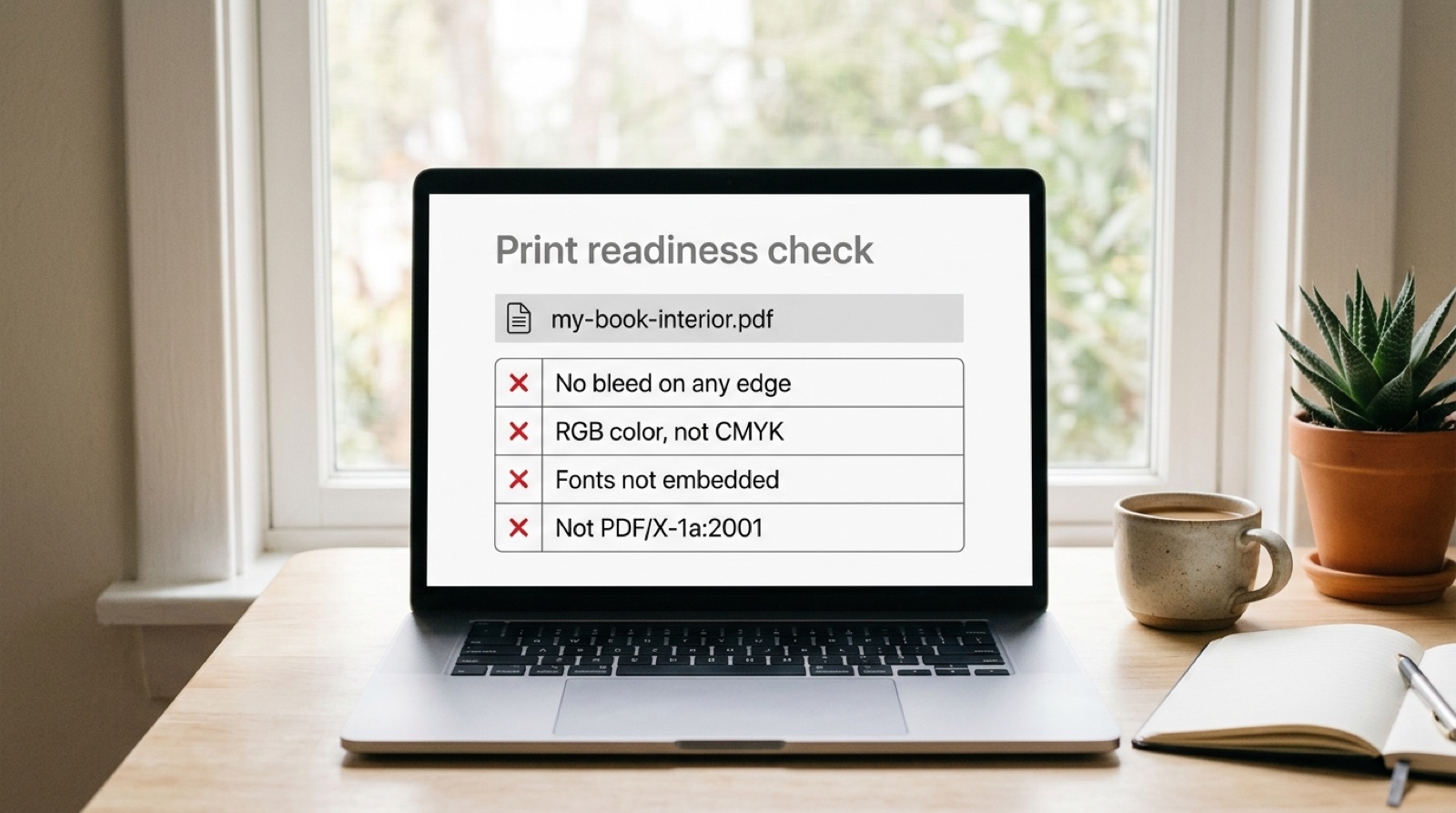
Most advice on this subject is vague and faintly condescending, along the lines of using professional tools for professional results. Ingram is specific instead, and the list is short: Microsoft Word, Microsoft Publisher, Adobe PageMaker 6.5 and older, InDesign CS2 and older. Word appears with an asterisk the guide never explains.
That is a printer telling you, in its own documentation, which tools it will not accept files from. It is worth understanding why, because the reasons also explain the rejection you are probably holding.
What print ready actually means
The phrase gets used as though it meant tidy. It does not. A print-ready book file has to satisfy six specific conditions, and a word processor cannot produce several of them at all.
| Requirement | What it means | Word | Canva |
|---|---|---|---|
| PDF/X-1a:2001 | A restricted PDF subset for press | No | No |
| CMYK color | Four ink channels, no RGB | No | Not reliably |
| Bleed on three edges | 0.125 in past trim, never on the bind edge | No | Fixed, not adjustable |
| Embedded fonts | Every face carried inside the file | Partly | Yes, usually |
| Flattened transparency | Effects resolved before export | No control | No control |
| Declared trim size | Page size equal to the book's trim | Manual | Manual |
None of this is a criticism of either tool at what it was built for. Word is an excellent manuscript editor and Canva is a genuinely good layout tool for screen graphics. Neither was designed to drive a printing press, and neither pretends otherwise in its own documentation.
What Word cannot do
Word has no concept of CMYK. Every color in a Word document is RGB, so every export is an RGB PDF, which produces the rejection covered in your file contains RGB color space objects. There is no setting to change this because the model is not there.
Word also has no concept of bleed. A page in Word is the trim size and nothing extends past it, so a full-bleed image cannot be built correctly. Authors work around this by setting a larger page size, which produces a document whose pages are the wrong dimensions and fails on trim size instead.
Font embedding is the one Word can partly do, through Save As, Options, and the ISO 19005-1 compliant option, which produces PDF/A rather than PDF/X. PDF/A is an archival standard. It embeds fonts, which is useful, and it does not require CMYK, flattened transparency or an output intent, so it satisfies one of six conditions and leaves five.
There is also the base 14 trap, which is not specific to Word but bites here often. Acrobat's default Standard preset does not embed the fourteen fonts every PDF reader is required to have, on the assumption that the reader already has them. A press is not a PDF reader. That one is written up in fonts are not embedded.
What Canva cannot do
Canva is better than Word at this, and it is the more common source of covers rather than interiors. Its limits are narrower but they land in awkward places.
- Bleed is a fixed setting. Canva's help documentation describes the bleed margin as set by print production standards and not adjustable, so you cannot specify the 0.125 in Ingram asks for, nor suppress it on the bind edge where Ingram says it causes incorrect positioning.
- Crop marks are an all-or-nothing checkbox, and Ingram asks for no crop, printer or registration marks in the file at all.
- Canva does not calculate a spine. Spine width comes from your page count and paper stock, and it has to match the template the printer generated. More on that in why your spine width changed.
- Canva does not generate EAN-13 barcodes, which every cover needs.
- Canva cannot export PDF/X-1a:2001, which is the format Ingram names in the rejection.
On color, treat anything you read as provisional and verify the actual file. Published guidance on what Canva outputs is inconsistent, and the dependable move is to open the exported PDF in Acrobat and look at Output Preview rather than trusting a blog post, this one included.
The conversion route, and what it cannot rescue
Acrobat Pro will convert an ordinary PDF toward PDF/X-1a, through Print Production and then Preflight. It is a real option and it fixes some things genuinely well. It is also widely oversold, so it is worth being clear about the division.
Conversion can embed fonts that are present on your system, convert RGB to CMYK with a profile you choose, flatten transparency, and add an output intent. Those are mechanical transformations on data that already exists in the file.
Conversion cannot invent bleed that was never drawn, because there is no artwork out there to use. It cannot change the page size to a trim the document was never built at without scaling or cropping the content. It cannot widen a gutter that is too narrow for the page count. And it cannot add resolution to an image, which is the subject of images are below the minimum resolution.
The rule of thumb is that conversion fixes how the file is described and cannot fix how it was built. Color space and font embedding are description. Bleed, trim and margins are construction.
What these tools are genuinely good for
None of this means abandoning the software you already know.
- Write in Word. It is a better manuscript tool than any layout application, and a clean Word file with real styles rather than manual formatting is exactly what a typesetter wants to receive.
- Use Word styles properly, because Heading 1, Heading 2 and a body style import cleanly into InDesign and save hours. Manual bolding and tabbed indents do not.
- Use Canva to explore cover directions. Working out composition, mood and typography cheaply before committing is a real part of the job.
- Use Canva for everything that stays on a screen: social graphics, ads, newsletter headers, author brand material. It is good at those and they are all RGB anyway.
The handover point is production. The design thinking can happen anywhere. The press-ready file has to be built in something that understands presses.
What actually produces a compliant file
Ingram's guide names Acrobat Distiller and export from InDesign as the PDF producers it expects, with PDF/X-1a:2001 available in Acrobat 6 Professional and later. In practice the working set is small: InDesign or Affinity Publisher for layout, Photoshop for image conversion, Acrobat Pro for preflight and verification.
That is a meaningful amount of software to buy and learn for one book, which is the honest reason so many authors end up in Word or Canva in the first place. The alternative is not buying the toolchain. It is handing the files to someone who already has it.
Frequently asked questions
Can I use Microsoft Word to create a print-ready book PDF?
Not for IngramSpark or Lightning Source. Ingram's file creation guide lists Microsoft Word under NON-SUPPORTED PROGRAMS, alongside Microsoft Publisher, Adobe PageMaker 6.5 and older, and InDesign CS2 and older. Word has no CMYK color model and no concept of bleed, so two of the six requirements for a press-ready file cannot be met at all.
Why does Word always produce an RGB PDF?
Because Word has no CMYK color model. Every color in a Word document is defined in RGB and there is no setting to change it, so every PDF it exports is RGB. That produces the 'File contains RGB color space objects' rejection on any printer that requires CMYK.
Can Canva export a print-ready book cover?
Not a fully compliant one. Canva cannot export PDF/X-1a:2001, its bleed is a fixed setting that cannot be adjusted to the 0.125 in Ingram specifies or suppressed on the bind edge, it does not calculate spine width, and it cannot generate an EAN-13 barcode. It is useful for exploring cover directions and excellent for screen graphics.
Can Acrobat convert my Word PDF to PDF/X-1a?
Partly. Acrobat Pro can embed fonts, convert RGB to CMYK, flatten transparency and add an output intent, because those are transformations on data already in the file. It cannot invent bleed that was never drawn, change the page size to a trim the document was not built at, widen a gutter, or add resolution to an image. Conversion fixes how a file is described, not how it was built.
What software do I actually need?
Ingram names Acrobat Distiller and export from InDesign as the expected PDF producers, with PDF/X-1a:2001 available in Acrobat 6 Professional and later. A working set is InDesign or Affinity Publisher for layout, Photoshop for image conversion and Acrobat Pro for preflight. That is a lot to buy and learn for one book, which is why many authors hand the files over instead.
Should I still write my manuscript in Word?
Yes. Word is a better manuscript tool than any layout application, and a clean Word file using real styles rather than manual formatting imports into InDesign cleanly and saves hours of setup. The handover point is production, not writing.
Stuck on a rejected file?
File Fix diagnoses every reason your file was refused, not just the one the printer named. Diagnosis back in three to five business days, from $99.
Get your files fixed